
(Optional, but Recommended) Set Up Frontrun & Its Fees
Frontrun isn't required, but it's recommended. The main reason is the big fee cashback, which can be your second life when you're taking losses.
In this lesson you set up Frontrun with the same GMGN , then tune its fees so they're lower. Don't want to use Frontrun? Skip straight to Without Frontrun: Buy/Sell Directly on GMGN below.

Why Use Frontrun?
Frontrun's cashback can be your second life. The cashback is big (most of your trading fees come back to you), so when you're taking losses, it can help cover part of them.
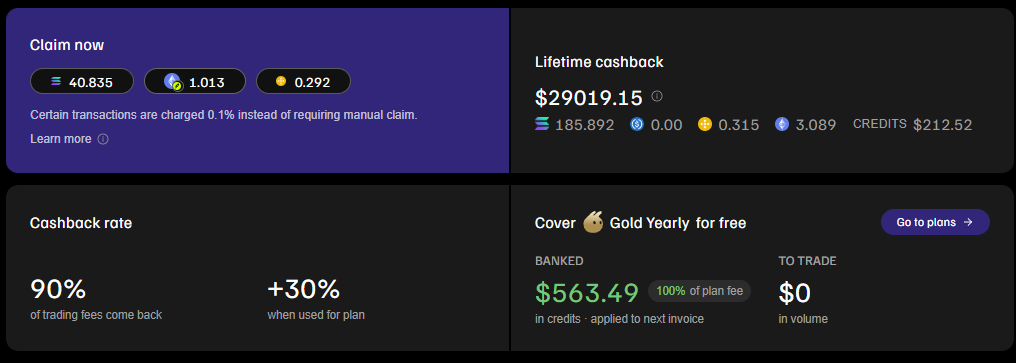
- Fee cashback. The Solana trading fee on Frontrun is 1%, and 90% of eligible fees can be claimed back, so the effective fee is about 0.1%. (Source: Frontrun Docs: Fees, checked Oct 18, 2026.)
- Cashback only comes from trades executed through Frontrun. View and claim it on the "$X saved!" badge or the dashboard (frontrun.pro/dashboard/rewards), as SOL or subscription credit.
- A research bonus on X: History (the CAs an account has tweeted, including deleted ones) and Smart Followers.
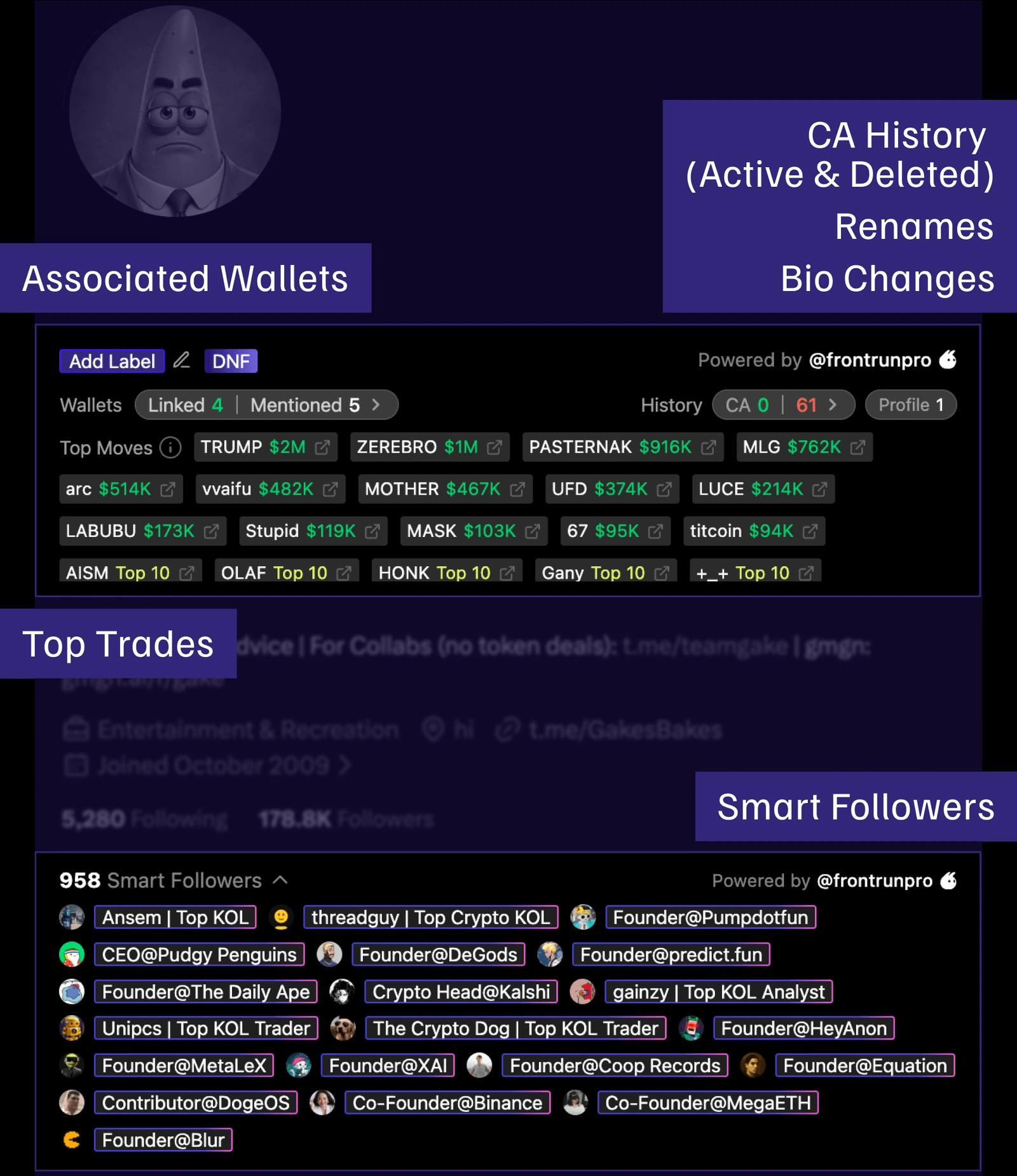
Frontrun X Insights cards: CA History, Renames, Smart Followers, and more. (Source: frontrun.pro)
Note: the Frontrun docs don't spell out which trades are eligible for cashback, or whether the full cashback applies on the free plan. Check it yourself on the Rewards dashboard.
Step 1: Install Frontrun
- Sign up for / install Frontrun through this link: https://frontrun.pro/r/yujin
Step 2: Use the Same GMGN Wallet
Use the same GMGN wallet: export your GMGN wallet (see 1.4, How to Export Your GMGN Wallet Private Key) → in the Frontrun sidepanel open Wallets and click Import → paste the private key → your SOL balance shows up in Frontrun right away.
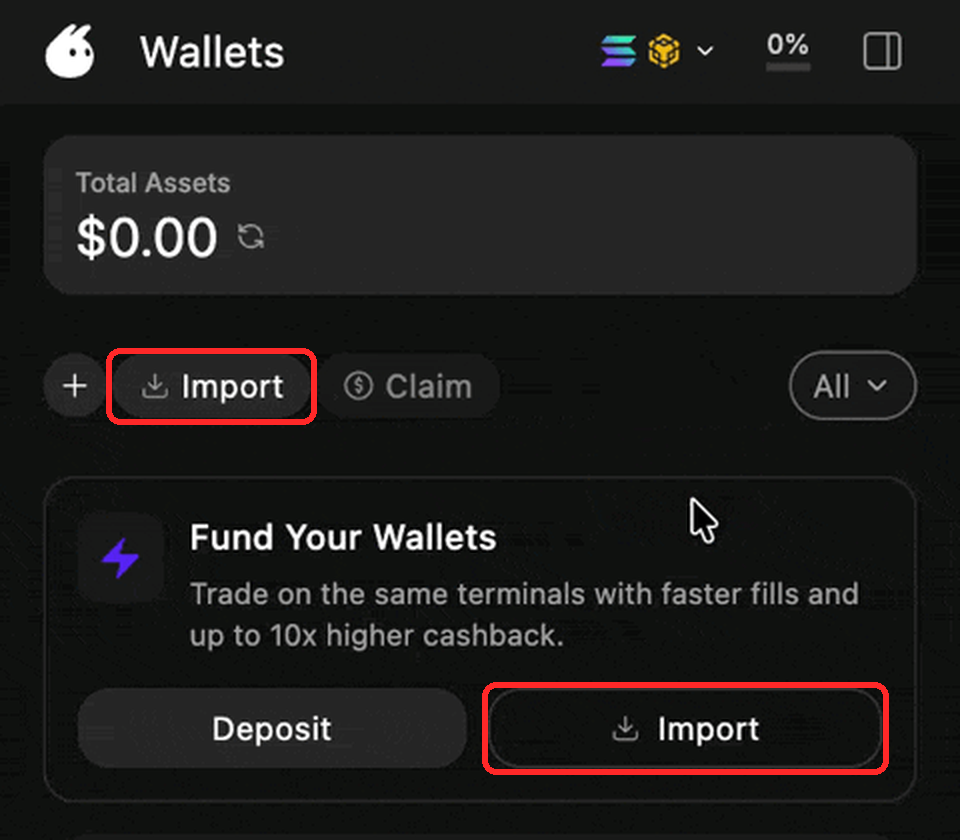
Only paste your private key into the official Frontrun extension/site, nowhere else. After that, delete the copied private key from your clipboard/notes.
Step 3: Turn On Auto Fee in Frontrun
- In the Frontrun trading panel, turn on . Frontrun sets the and automatically based on conditions.
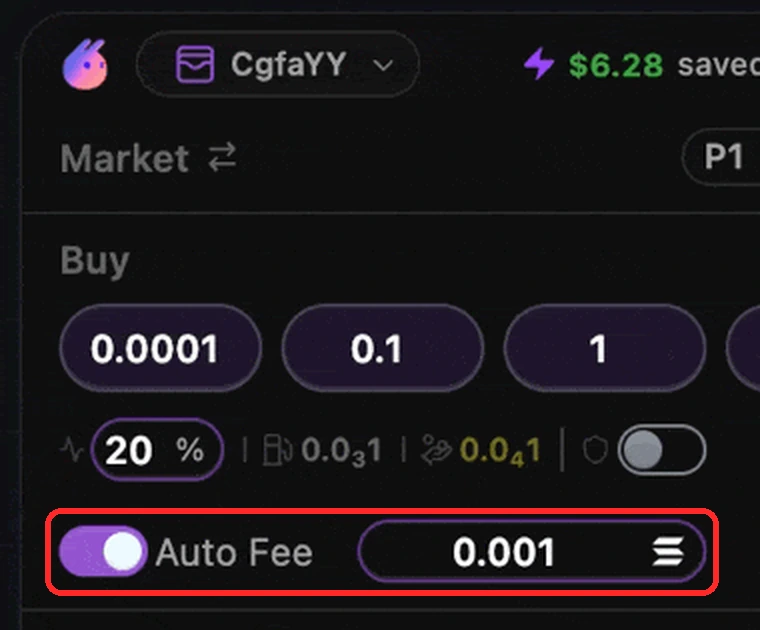
Auto Fee ON in the Frontrun trading panel, with the SOL field next to it. (Source: Frontrun Docs, red box added) - In the SOL field next to it, enter your max fee (a guide, adjust to network conditions):
- Low: ~0.0001 SOL (for small budgets; can be slow or fail when the network is busy)
- Standard: ~0.0005 SOL (everyday use)
- Fast: ~0.001 SOL or more (when a coin is pumping or the network is busy)
Step 4: How to Trade with Frontrun
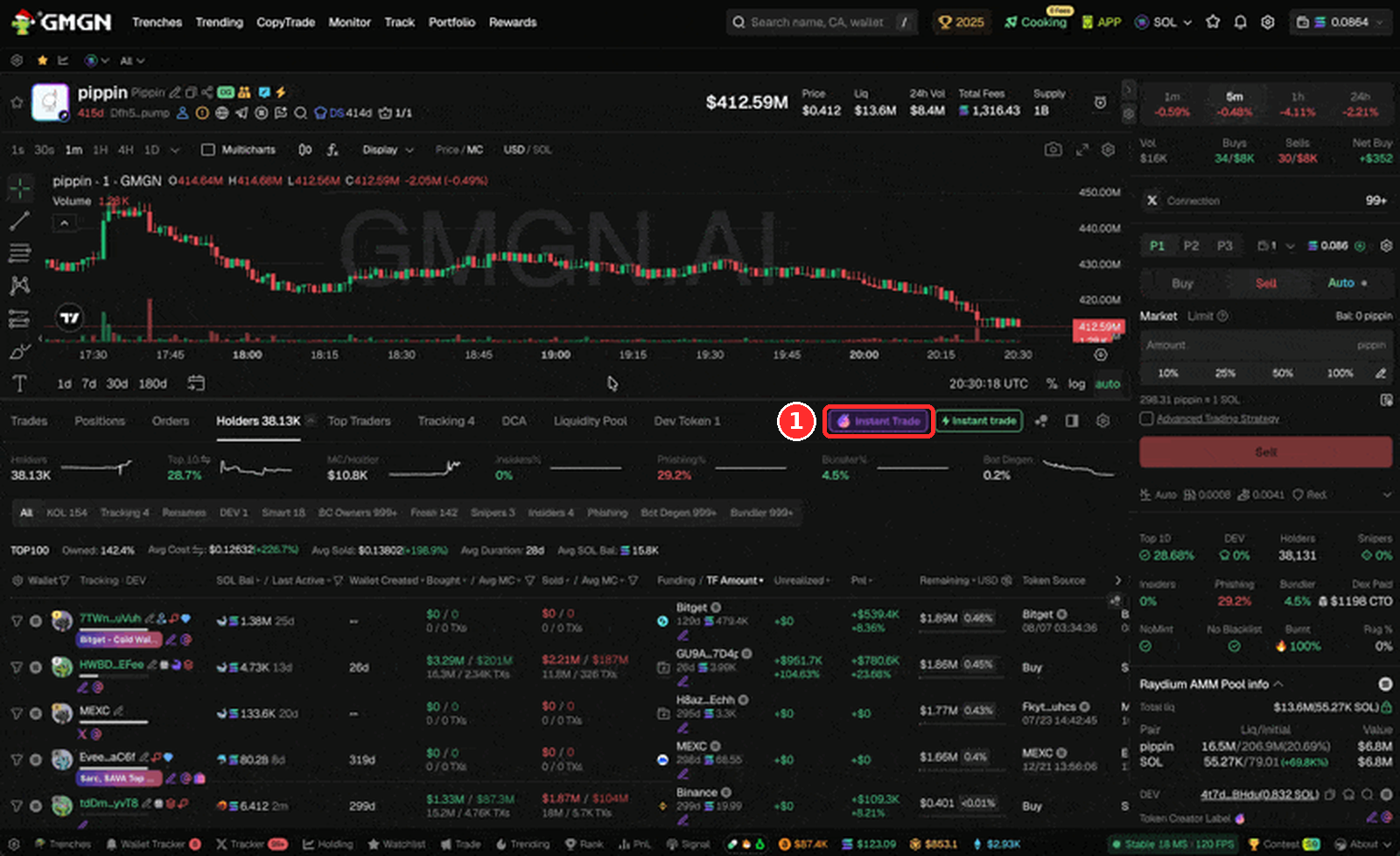
- Open a token page on GMGN (through https://gmgn.ai/r/Yujin) and click the purple Instant Trade button ①. The Frontrun panel opens right away.
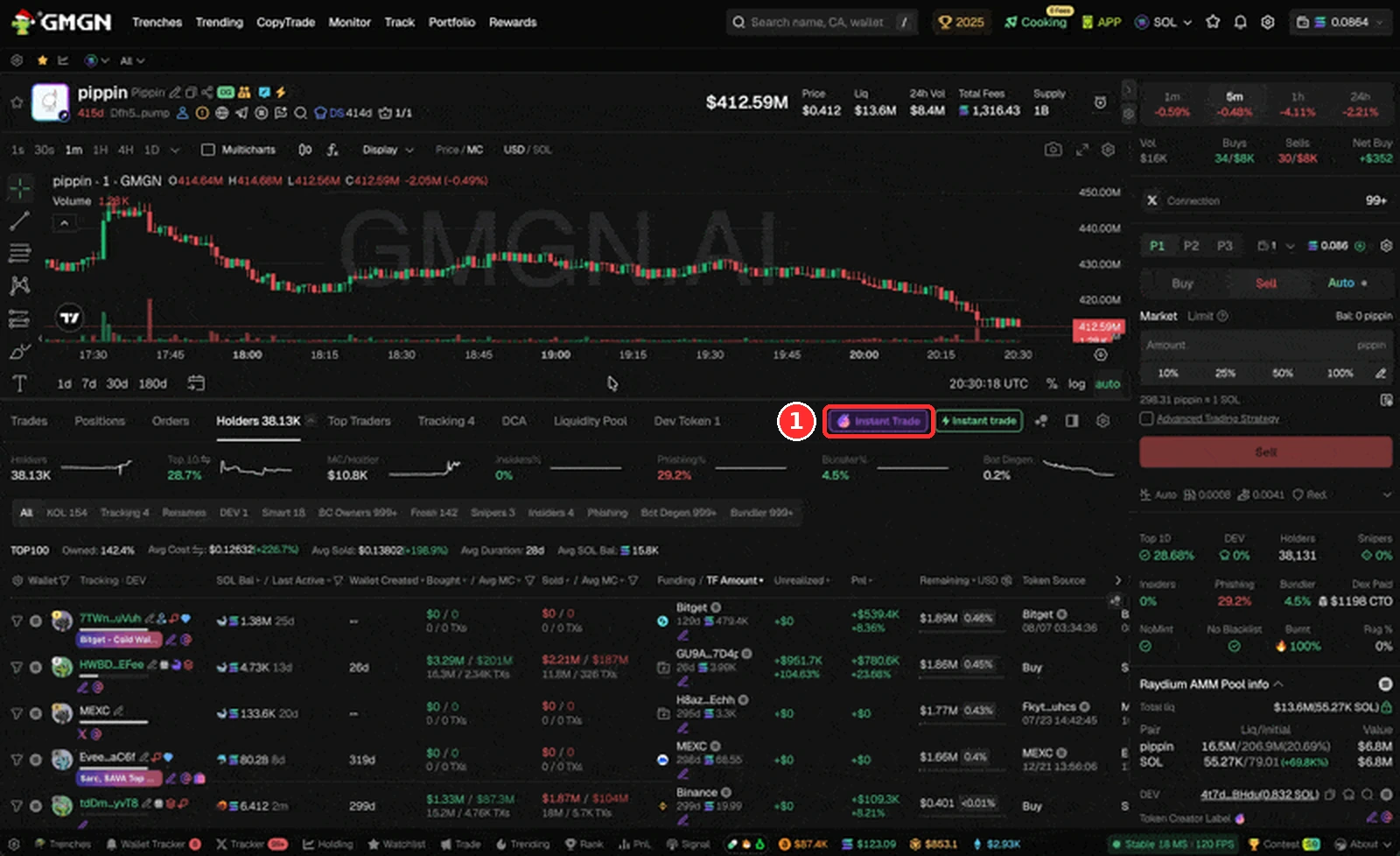
Frontrun's Instant Trade button on a GMGN token page. Source: official Frontrun documentation (docs.frontrun.pro). Numbers are only examples, and the screen may look slightly different. - In the Frontrun panel:
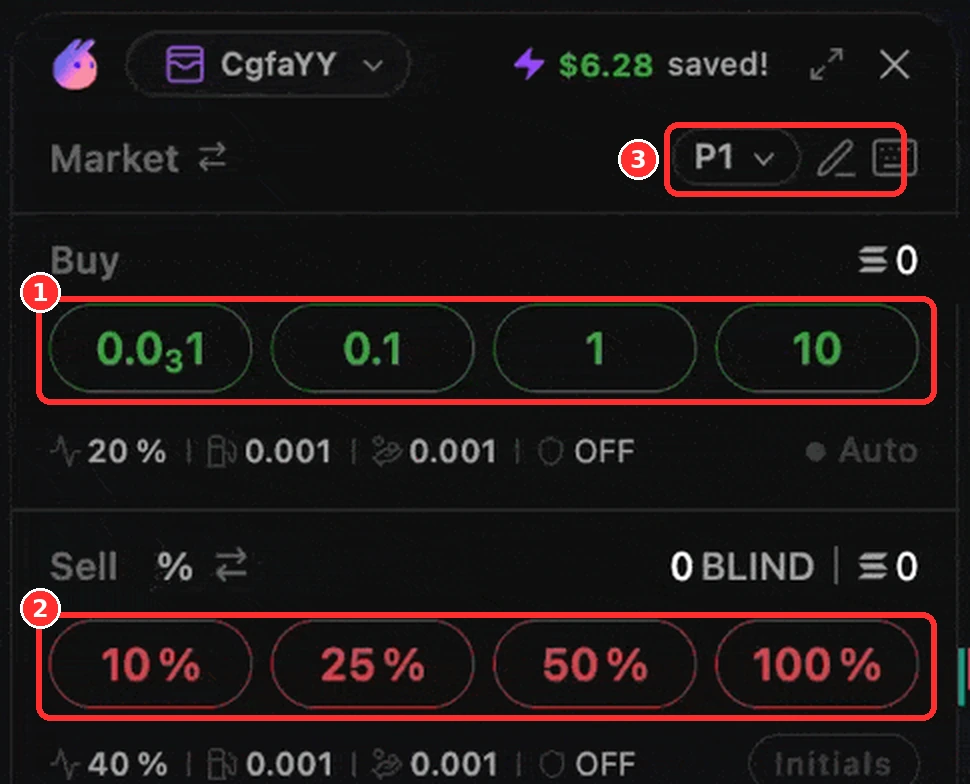
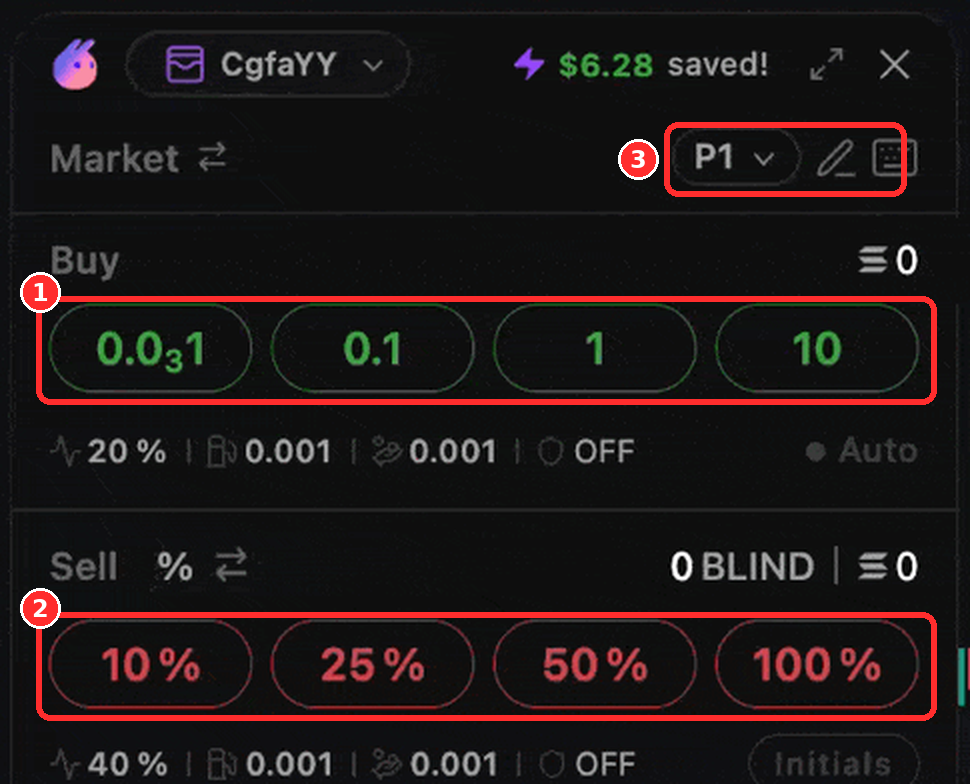
Frontrun Instant Trade panel: Buy buttons, Sell % buttons, and presets. Source: official Frontrun documentation (docs.frontrun.pro). Numbers are only examples, and the screen may look slightly different. - ① Buy (green): press one of the SOL amounts to buy instantly. 0.0₃1 means 0.0001 SOL.
- ② Sell (red): sell 10% / 25% / 50% / 100% of your coins.
- ③ P1 + pencil icon: switch presets and change the amounts, for example to 0.1 / 0.5 / 1.
- The fee follows your Auto Fee setting from step 3. The same panel also shows up on Axiom and DexScreener.
Without Frontrun: Buy/Sell Directly on GMGN
Frontrun is optional. If you skip it, you can still trade directly in the GMGN trading panel (the right column of a token page). The difference: GMGN's fee is 1% per transaction and there's no Frontrun cashback. (Fee source: GMGN Docs: Fees & Settings, checked Oct 18, 2026.)
The Buy/Sell Panel
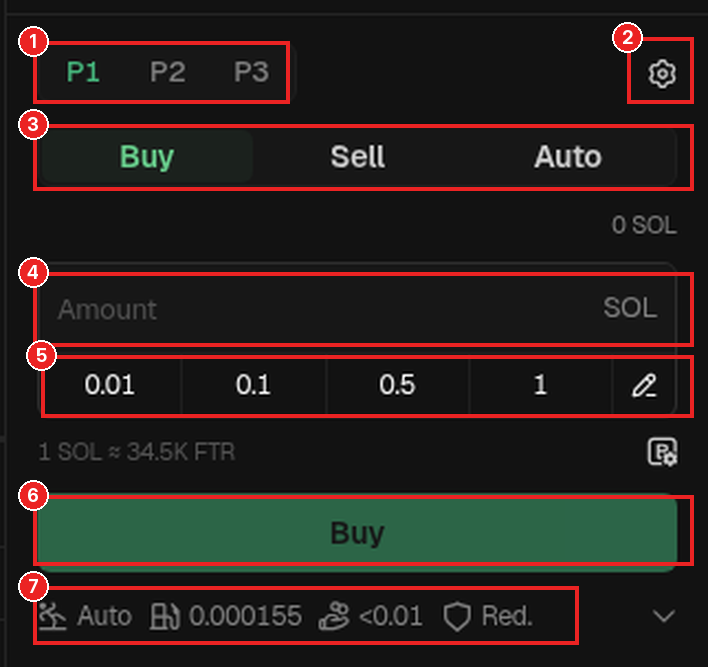
- Open a token page on GMGN (through https://gmgn.ai/r/Yujin). The trading panel is in the right column.
- Choose preset P1 / P2 / P3 ①. Each preset has its own fee settings, so you can save, for example, P1 = Low, P2 = Standard, P3 = Fast.
- Choose the Buy tab ③ (the Sell tab to sell, Auto for automatic orders).
- Enter the SOL amount in the Amount field ④, or press a quick button 0.01 / 0.1 / 0.5 / 1 ⑤. The pencil icon changes those amounts.
- Click Buy ⑥. Wait until the transaction succeeds and the token shows up in your positions.
- To sell: switch to the Sell tab, choose how much to sell, then click Sell.
- The bottom row ⑦ summarizes your active settings: slippage (Auto), priority fee, tip, and MEV mode (Red. = Reduced). Glance at it before you click Buy.
Quick Buy Settings (gear icon ②)
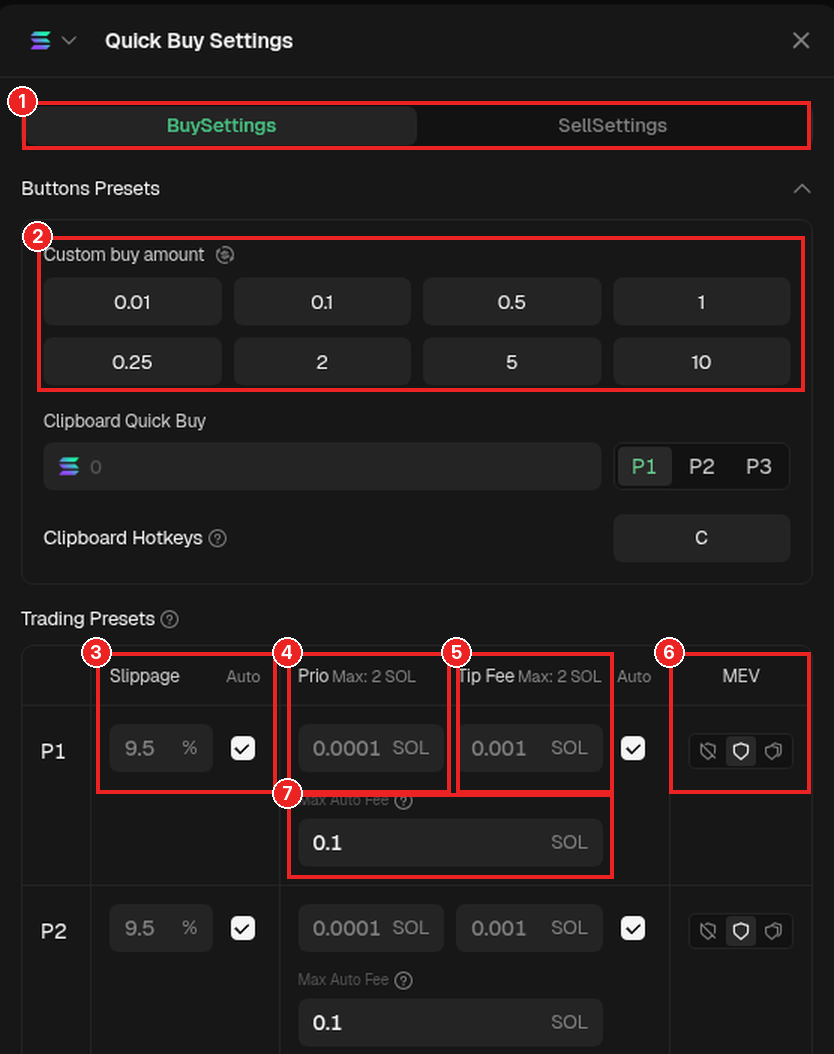
- Click the gear icon ② in the panel. The Quick Buy Settings window opens with BuySettings and SellSettings tabs ①. Set up both.
- Custom buy amount ②: change the quick button amounts to match your budget. Small budget? Use small amounts.
- Under Trading Presets, set each row (P1, P2, P3):
- Slippage ③: default 9.5%. Check Auto to let GMGN adjust it; GMGN Docs actually recommend Auto for manual buys and sells.
- Prio ④ (priority fee) and Tip Fee ⑤: use this course's guide, Low ~0.0001 SOL, Standard ~0.0005 SOL, Fast ~0.001 SOL or more. In the screenshot, the defaults are Prio 0.0001 SOL and Tip 0.001 SOL.
- MEV ⑥: three buttons for sandwich attack protection modes. According to GMGN Docs: Off is fastest, Reduced is fast but can still be front-run, Secure is a bit slower but better protected.
- Max Auto Fee ⑦: when Auto is checked, this is the maximum fee allowed (default 0.1 SOL). Lower it so your fees don't get out of hand, for example to the Fast guide.
Prio vs Tip, what's the difference? Prio (priority fee) is paid to Solana validators so your transaction gets priority. Tip is paid to a special (private) node so your transaction is sent faster. Neither goes to GMGN, and according to GMGN Docs each has a minimum of 0.0001 SOL.
Note: if your transactions are often slow or fail, raise Prio/Tip. GMGN Docs say a total on-chain cost of 0.002 to 0.005 SOL is usually enough if you're not in a hurry, so the Low guide can be too small when the network is busy. Start with a small amount to test your settings.
Summary
- Frontrun is optional but recommended: the Solana trading fee is 1%, and 90% of eligible fees can be claimed back (about 0.1% effective). Cashback only comes from trades executed through Frontrun.
- Use the same GMGN wallet (import the private key into the official Frontrun), then turn on Auto Fee with a max fee based on the Low / Standard / Fast guide.
- Not using Frontrun? Trade directly in the GMGN panel (1% fee): set up presets P1 to P3, check Auto slippage, and lower Max Auto Fee.
Common mistakes
- Pasting your private key anywhere other than the official Frontrun extension/site, or forgetting to clear it from your clipboard.
- Leaving Max Auto Fee at the default 0.1 SOL with a small budget, so fees get out of hand.
- Thinking trades through the regular GMGN buttons also earn Frontrun cashback.
Saving on fees is also part of reducing risk. Keep trading with a cool head, and don't let greed take control.
Next up, lesson 1.6: How to Withdraw: From GMGN Back to Pintu.
Not financial advice.
Progress is saved in this browser.