
Create a GMGN Wallet & Send SOL from Pintu
Your SOL is on Pintu now. Next, create a on GMGN and send SOL from Pintu straight to it.

Step 1: Open GMGN & Log In
- Open GMGN through this link: https://gmgn.ai/r/Yujin (bookmark it) and click Log In at the top right (no account yet? Sign Up).

Sign Up and Log In buttons at the top right of gmgn.ai. (Screenshot: GMGN) - Click Continue with Google, then pick your Gmail account.
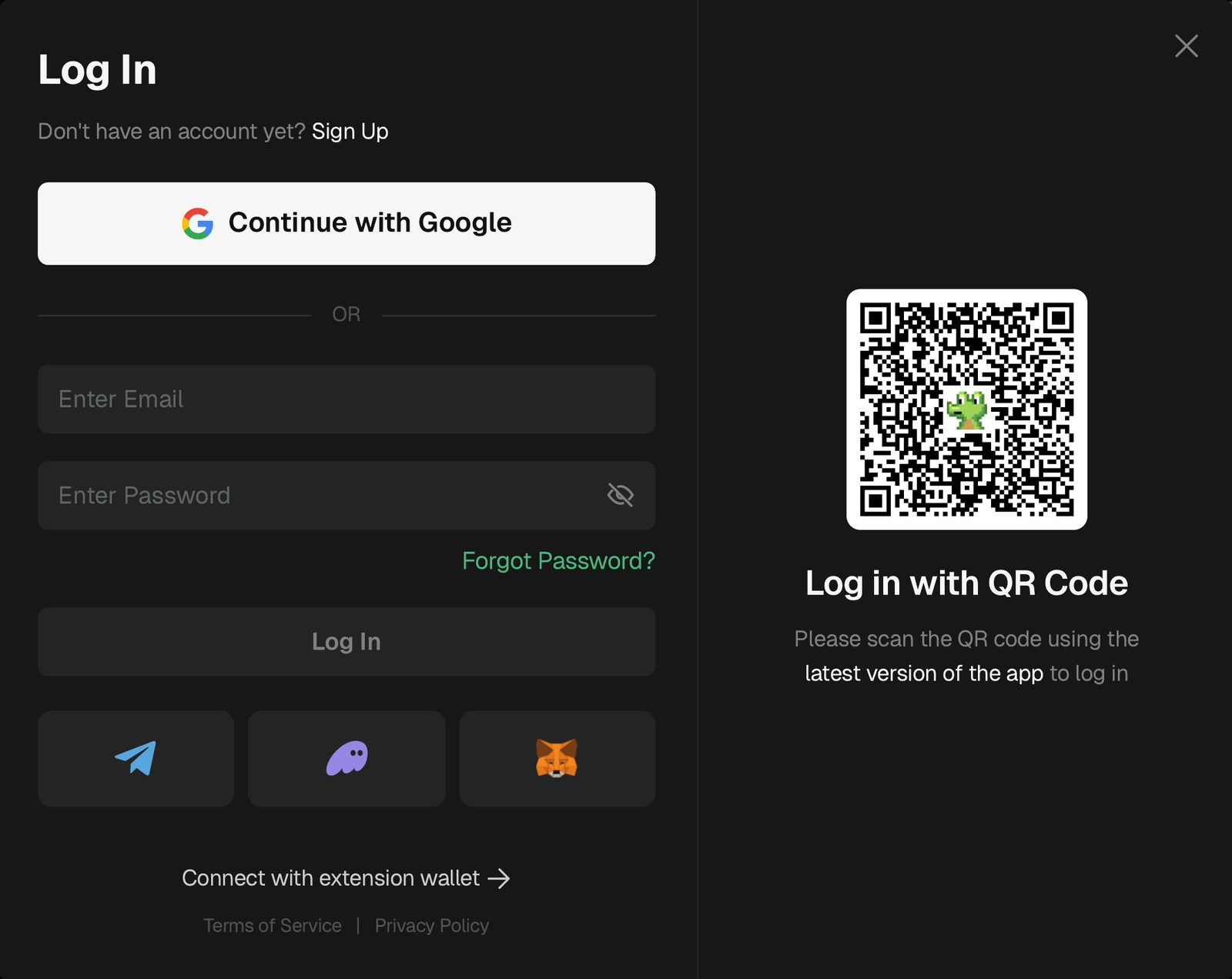
GMGN Log In window: Continue with Google, email/password, Telegram, Phantom, MetaMask, and QR code. (Screenshot: GMGN) - Once you're in, your Solana wallet is created automatically.

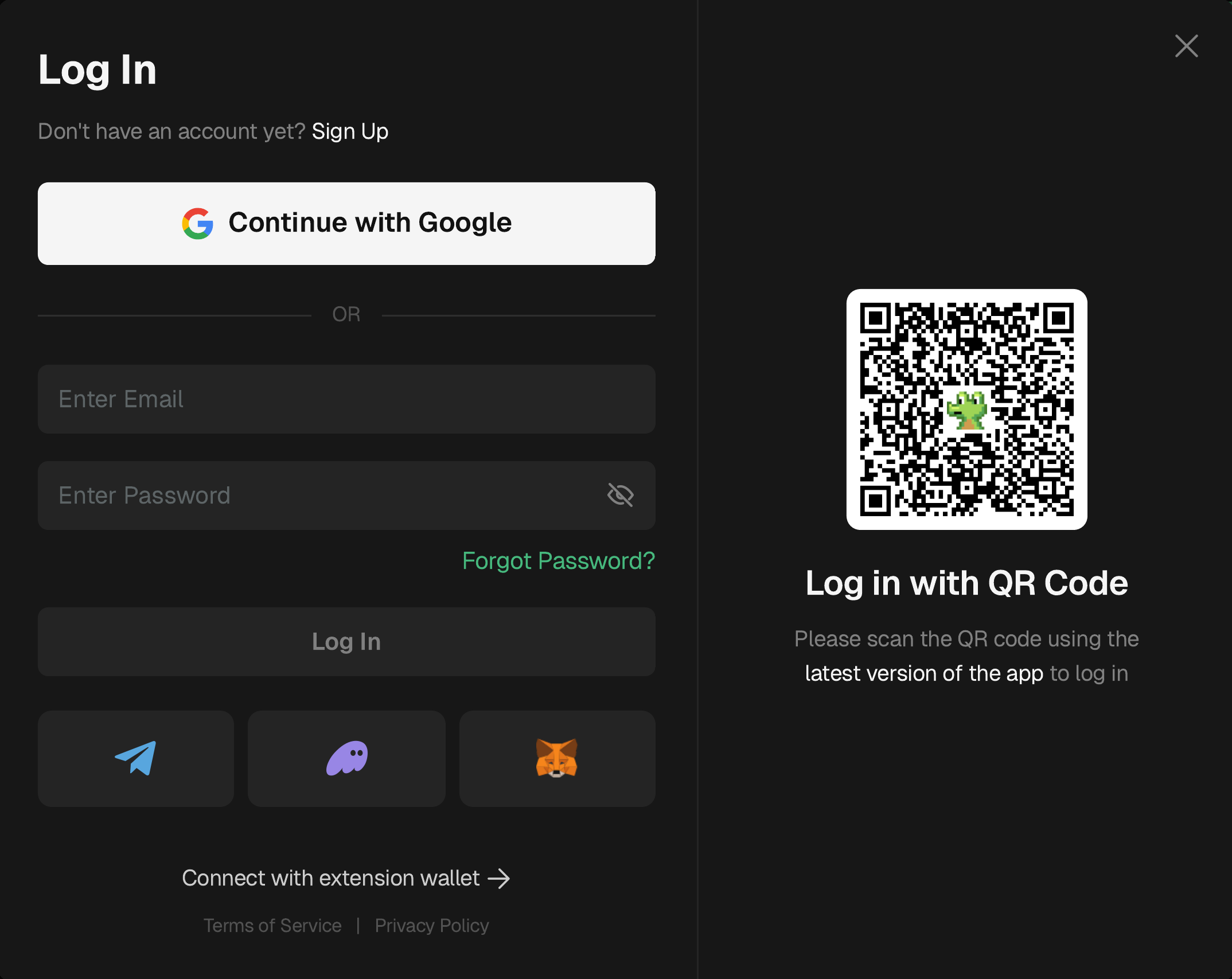
Google login here is just an example. You can also log in with any other available method, like email, Telegram, Phantom, or a wallet extension. Whatever you pick, always use the same method (a different method = a different wallet).
Step 2: Get Your SOL Address on GMGN
- Open Deposit, then click the copy icon next to your wallet address.
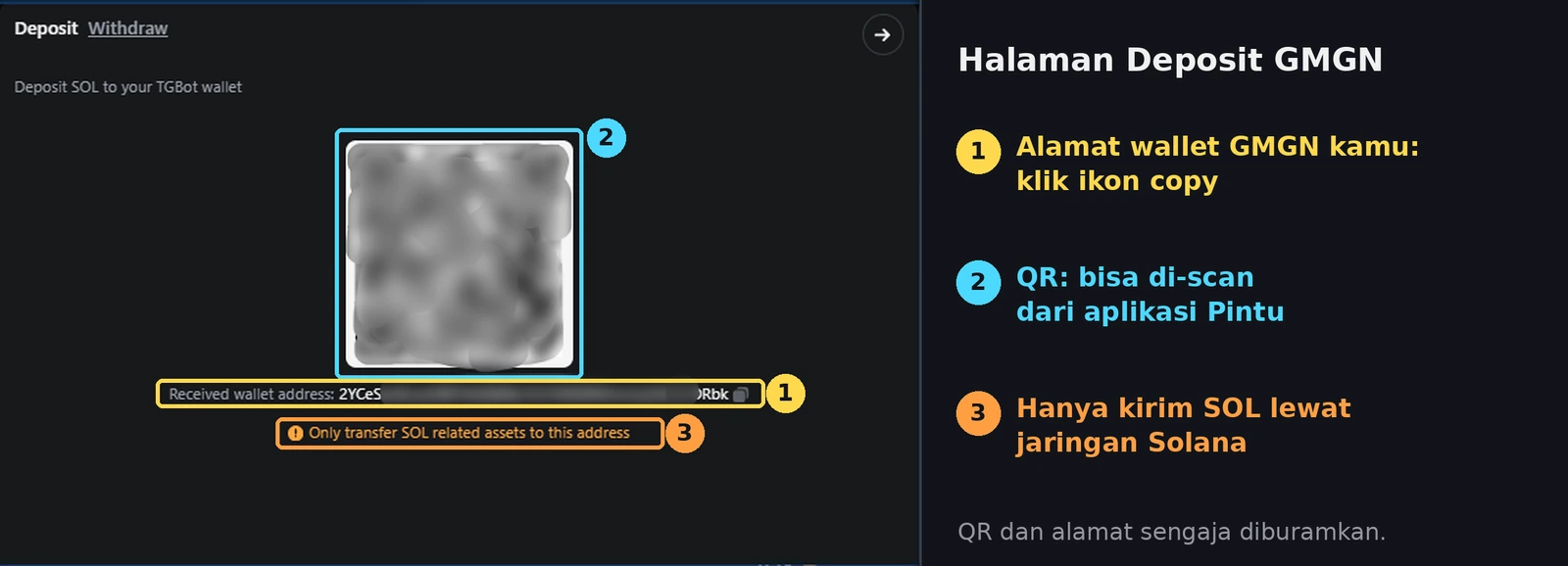
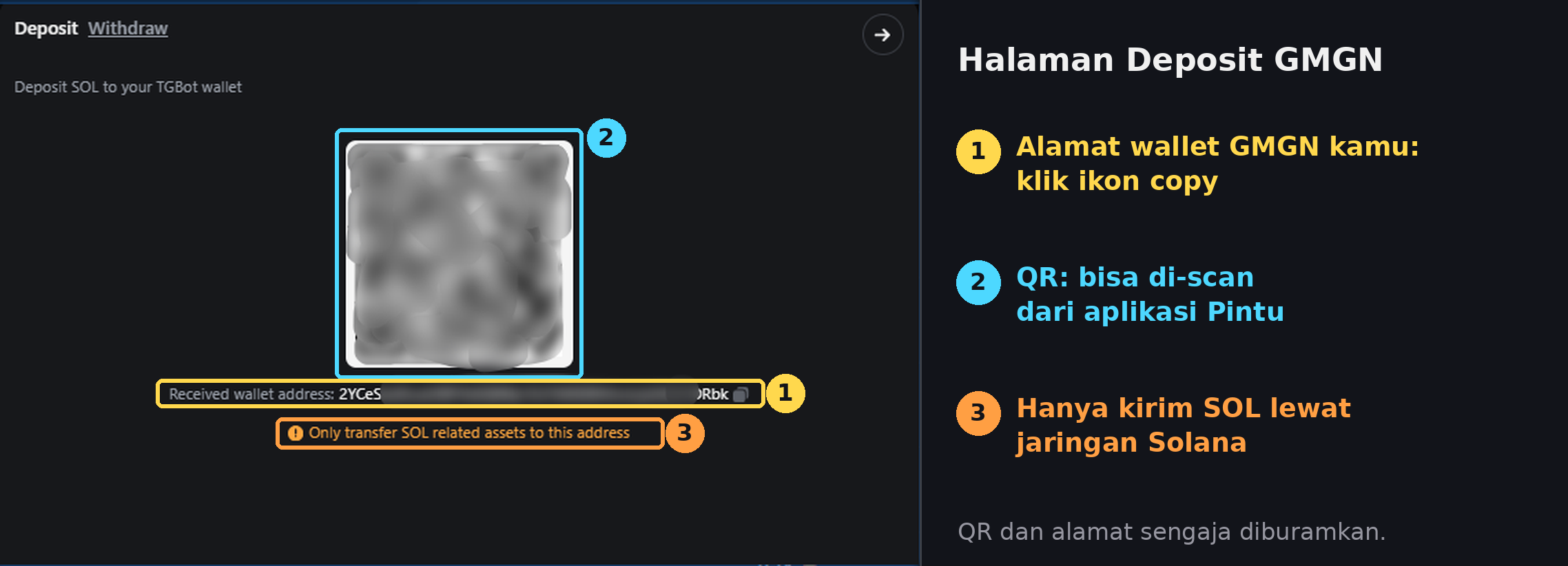
GMGN Deposit page: copy this address, then paste it in Pintu when you send SOL. (Source: GMGN Docs, annotated) - The address is copied. Head straight to Pintu.
Step 3: Send SOL from Pintu to GMGN
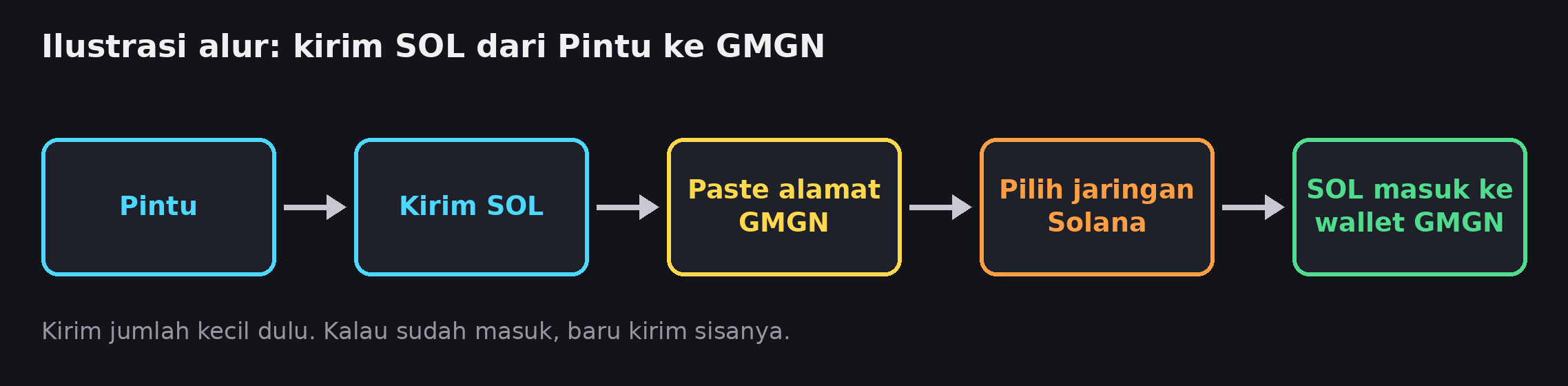
- On Pintu: Wallet → SOL → Kirim (Send), then paste the GMGN address. Don't type it by hand.
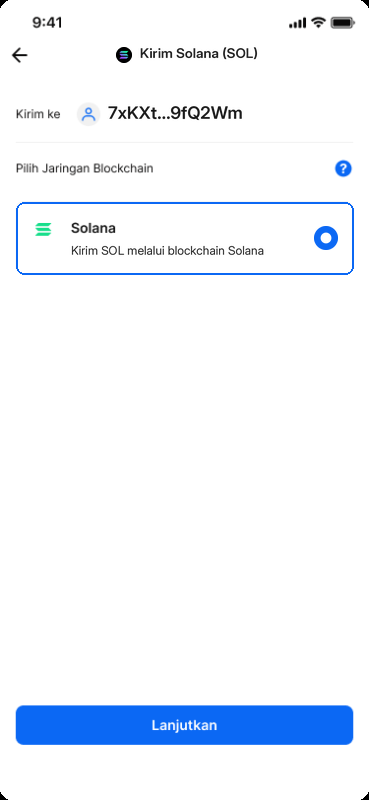
- Choose the Solana network.
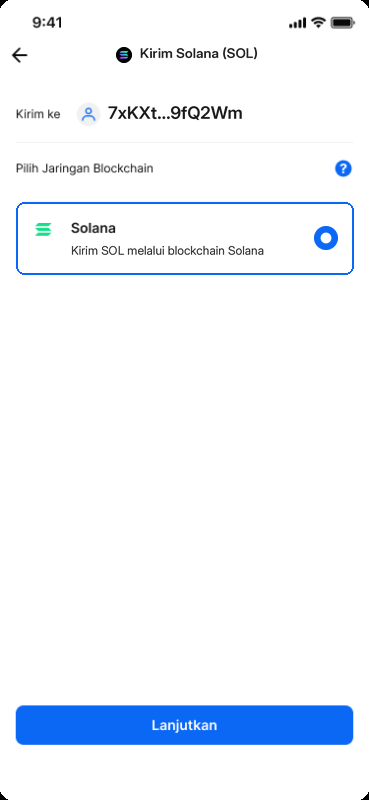
Illustration (edited from an official Pintu screenshot): choose the Solana network. Numbers and prices are only examples. - Fill in the recipient name and address with your own details (the GMGN wallet is yours).
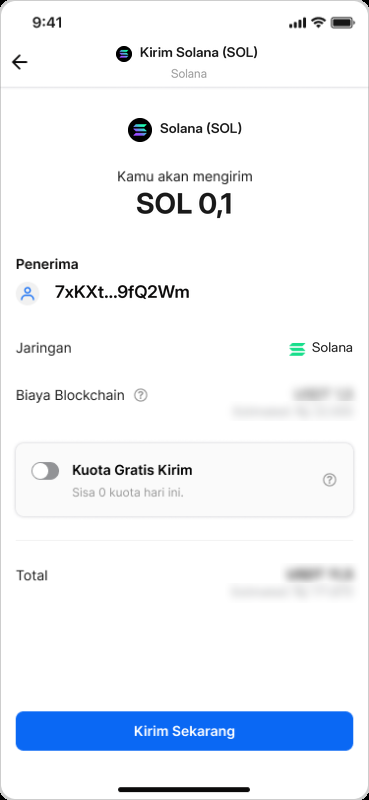
- Enter the amount and test with a small amount first. Check the blockchain fee, then tap Kirim Sekarang (Send Now).
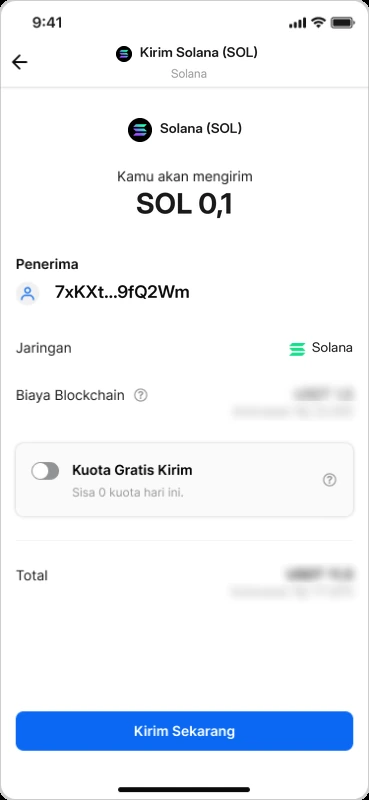
Illustration (edited from an official Pintu screenshot): confirming a SOL transfer. The fee is blurred, check the number in the app. Numbers and prices are only examples.
Step 4: Check That the SOL Arrived
- On GMGN, look at your SOL balance at the top right. It usually arrives within a few minutes.

SOL balance and the copy wallet address icon on GMGN web. (Source: GMGN Docs) - Arrived? Only then send the rest the same way.

Trading for real now? You can remove the DryFlip demo extension from lesson 1.2 (chrome://extensions → DryFlip → Remove).
How to Export Your GMGN Wallet Private Key
You need this to import the same GMGN wallet into Frontrun in lesson 1.5.
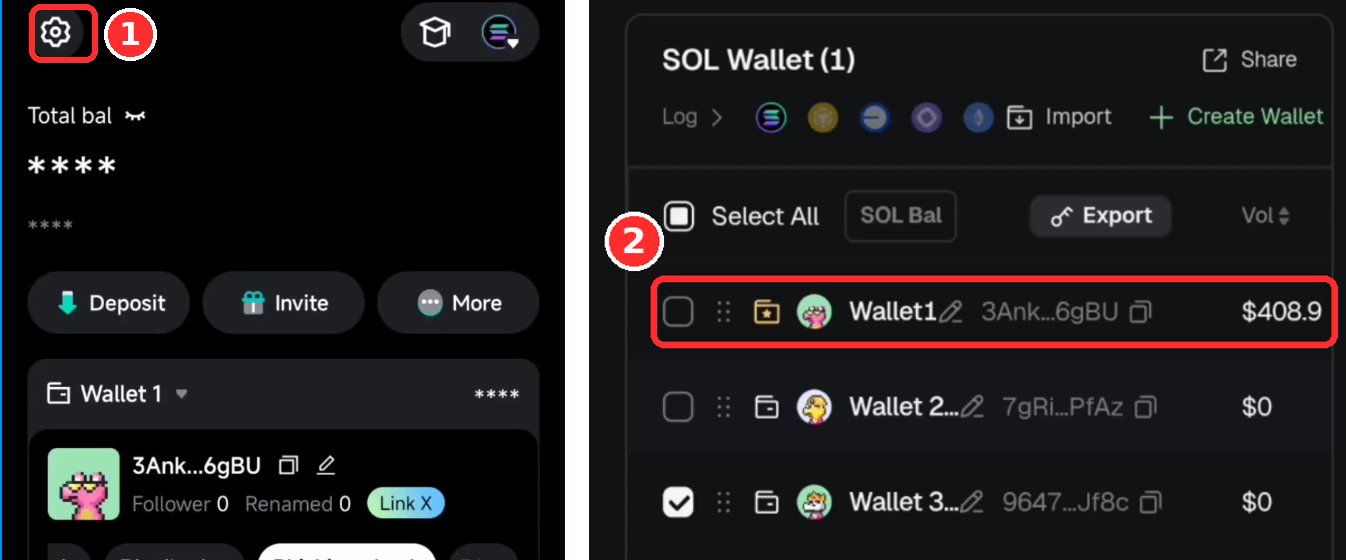
- Click the gear icon at the top left ① and open Settings → Wallet Manager.
- In the SOL Wallet list, find the wallet you use ②.
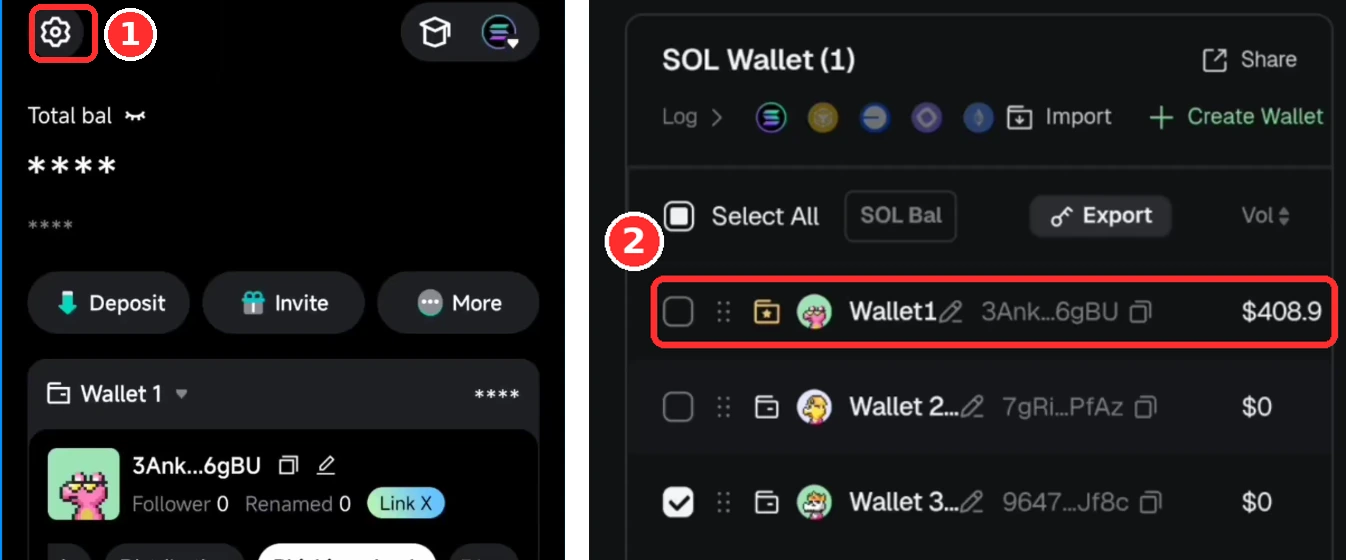
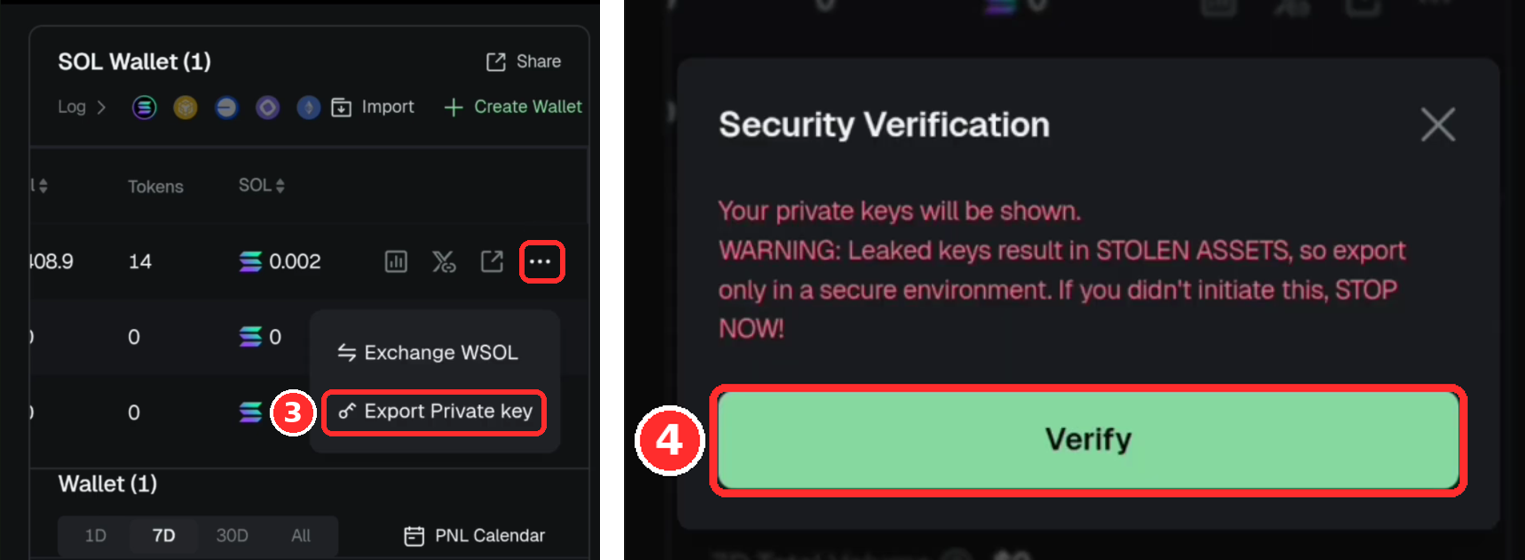
Steps ①–②. Illustration from a GMGN video tutorial (May 2026); the latest web version may look slightly different. - Click the ⋯ menu on that wallet → Export ③.
- A warning appears: read it first, then click Verify ④.
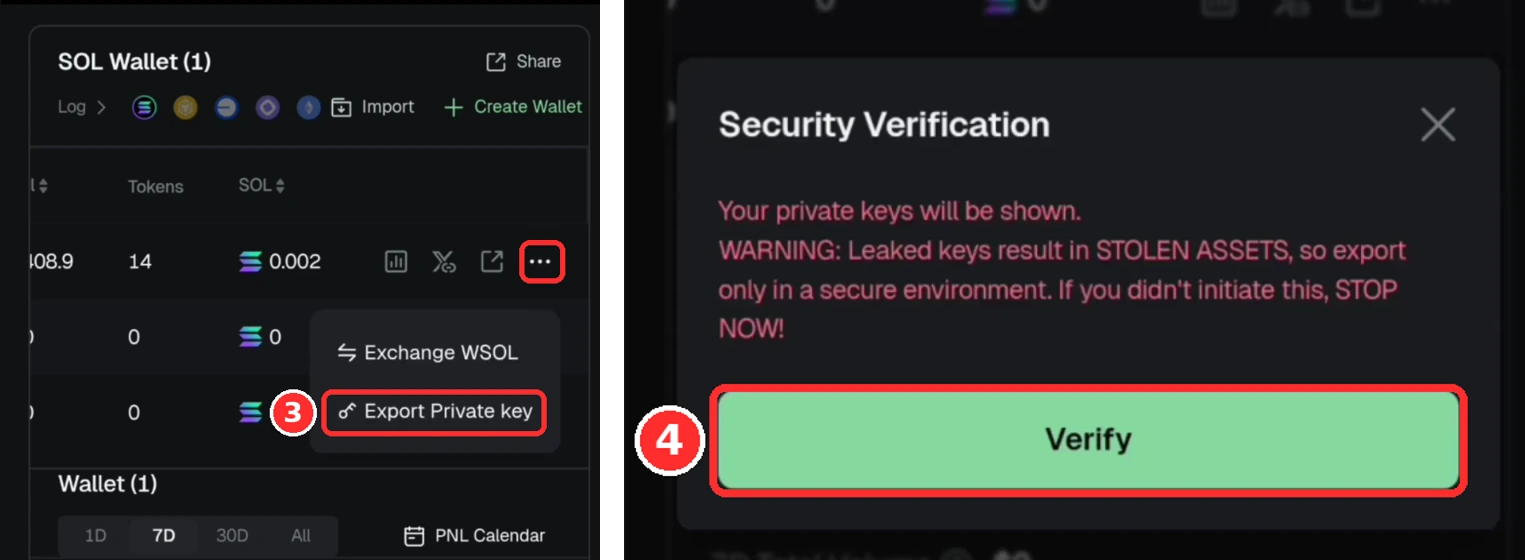
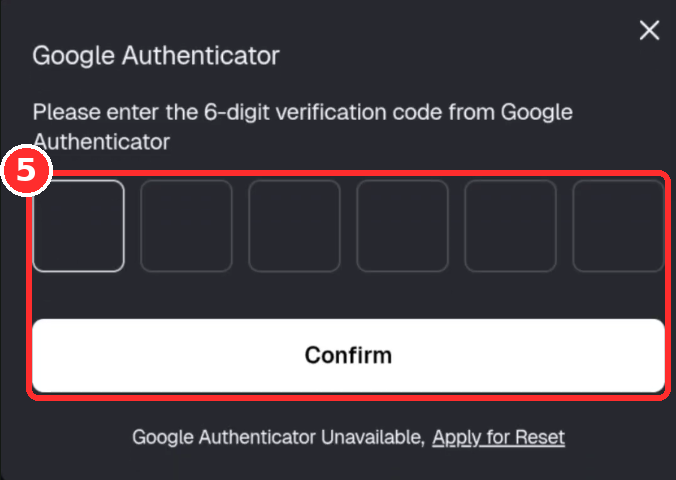
Steps ③–④. Illustration from a GMGN video tutorial (May 2026); the latest web version may look slightly different. - Enter the verification code (for example from ; depending on your account settings it can also be another code, like an email code) → Confirm ⑤.
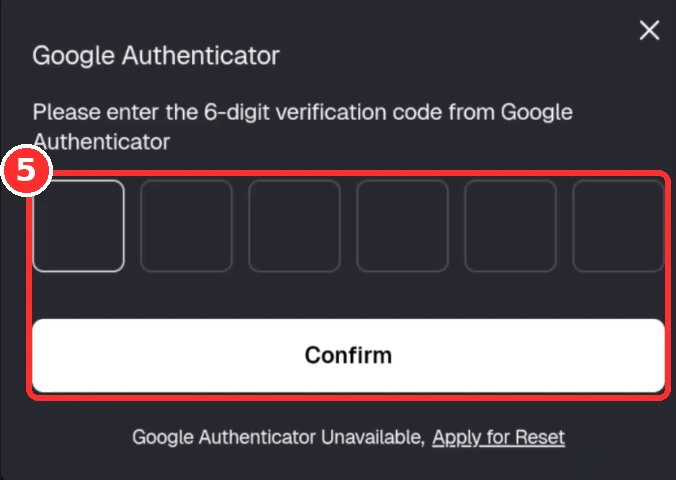
Step ⑤. Illustration from a GMGN video tutorial (May 2026); the latest web version may look slightly different. - Your private key appears → copy it. Never give it to anyone and never screenshot it. Only paste it into the official Frontrun (lesson 1.5), then clear it from your clipboard.
Account Security
- Turn on 2-Step Verification for the Google account you log in with.
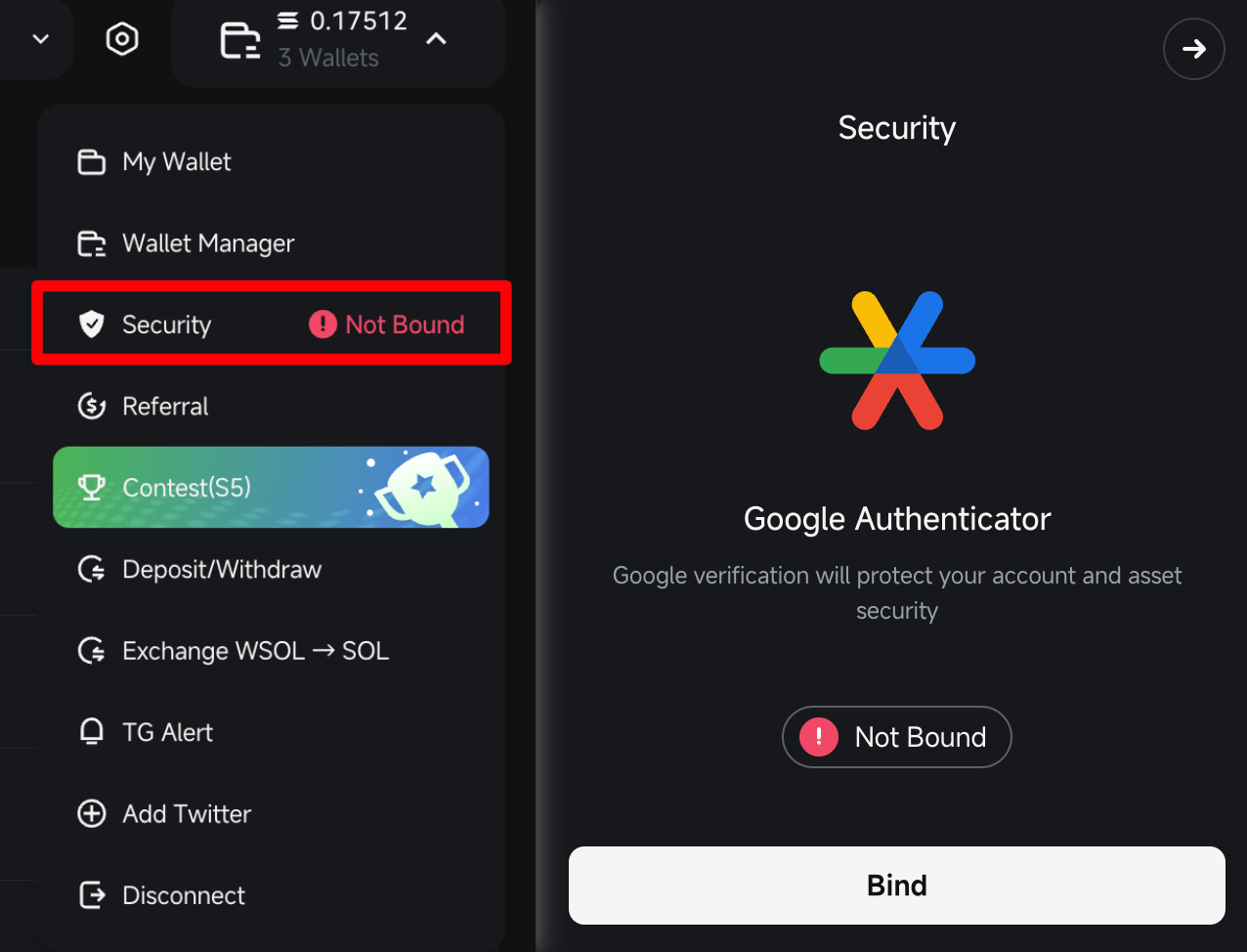
- On GMGN: wallet menu → Security → Bind Google Authenticator. Withdrawals need this code.
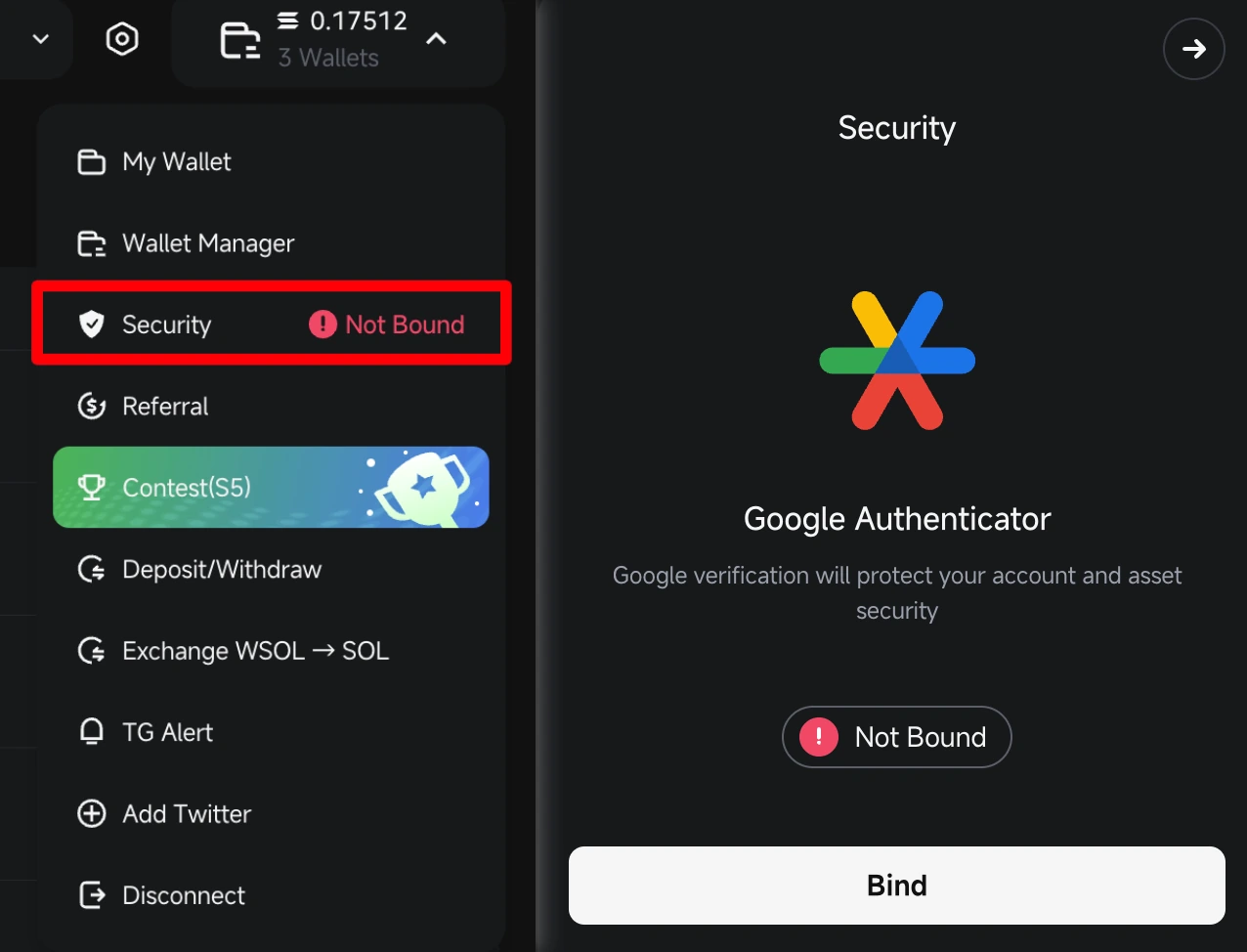
GMGN Security menu: Google Authenticator, click Bind. (Source: GMGN Docs) - Fill in the withdraw with your Pintu SOL address (the steps are in lesson 1.6, Step 2). Withdrawals can then only go to that address.
- Private key: how to export it is in the How to Export Your GMGN Wallet Private Key section above. Backup: write it on paper and store it offline.
- Never give your private key, , or 2FA codes to anyone. Whoever holds your private key can drain your wallet.
- Watch out for (fake links/sites). Only open GMGN, Pintu, and extensions through a bookmark or an official link; fake domains are often one letter off. Real admins never DM you first. Ignore random tokens/airdrops that tell you to claim on another site, and read every transaction before you approve it: if there's a warning, cancel.
Optional: GMGN can also Import the private key of another Solana wallet. Beginners don't need this.
Summary
- Log in to GMGN with the same method every time (a different method = a different wallet), then copy your SOL address from the Deposit menu.
- Send SOL from Pintu: paste the GMGN address, choose the Solana network, send a small amount first, check it arrived, then send the rest.
- Secure your account: 2-Step Verification on Google, bind Google Authenticator on GMGN, fill in the withdraw whitelist, and store your private key offline. Continue to lesson 1.5 (optional, but recommended) to set up Frontrun.
Common mistakes
- Typing the address by hand or choosing the wrong network. Funds can be lost and the transfer can't be reversed.
- Giving your private key, seed phrase, or 2FA code to anyone, or screenshotting your private key.
- Opening GMGN or Pintu from random links. Fake domains are often just one letter off.
A secure wallet = smaller . In the market, our goal is always to minimize risk, not to follow greed.
Next up, lesson 1.5: (Optional, but Recommended) Set Up Frontrun & Its Fees.
Not financial advice.
Progress is saved in this browser.