
How to Withdraw: From GMGN Back to Pintu
Once you're in profit, don't just stare at it on screen. In this lesson you move SOL from GMGN to Pintu, sell it for rupiah, then cash out to your bank account.

When to Withdraw?
Withdraw once you're in profit. An example habit (opinion): take out your initial capital first, then keep trading with the rest.
Step 1: Get Your SOL Address on Pintu
- On Pintu: → SOL → Terima → Alamat Wallet (Receive → Wallet Address).
- Choose the Solana , then copy the address.
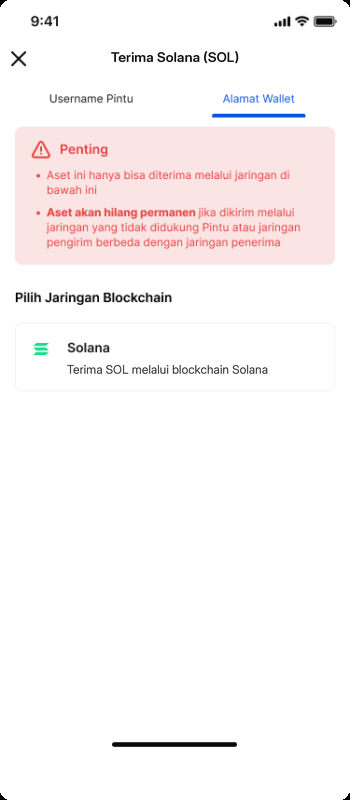
Illustration (edited from an official Pintu screenshot): receiving SOL, choose the Solana network. Numbers and prices are only examples.
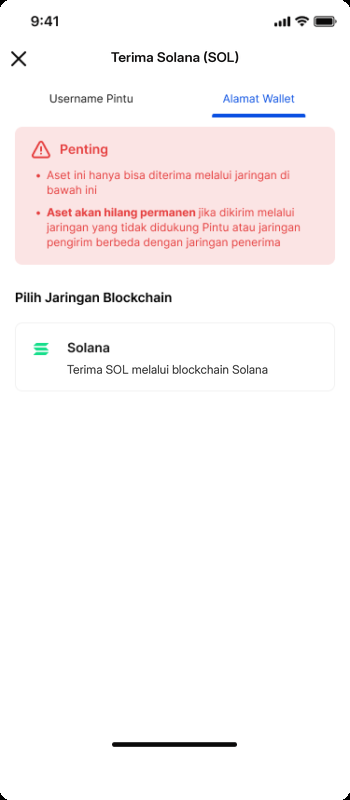
Your Pintu address can change, so always get the latest one before sending.
Step 2: Fill In the Whitelist on GMGN (One Time Only)
Withdrawals from GMGN can only go to a whitelisted address. So add your Pintu SOL address to the first.
- Make sure is bound (lesson 1.4, account security section). According to GMGN Docs, you fill in the whitelist after account security binding is done.
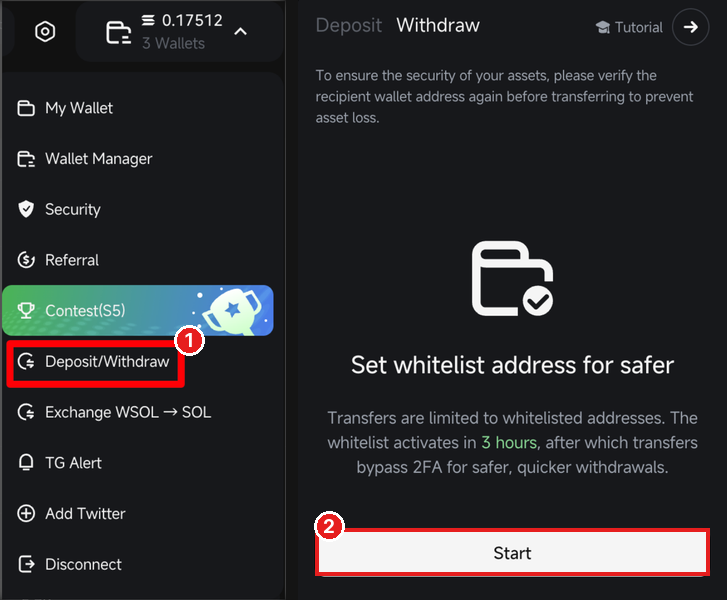
- Click the wallet menu at the top right → Deposit/Withdraw ① → Withdraw tab.
- If the whitelist is still empty, the Set whitelist address screen appears. Click Start ②.
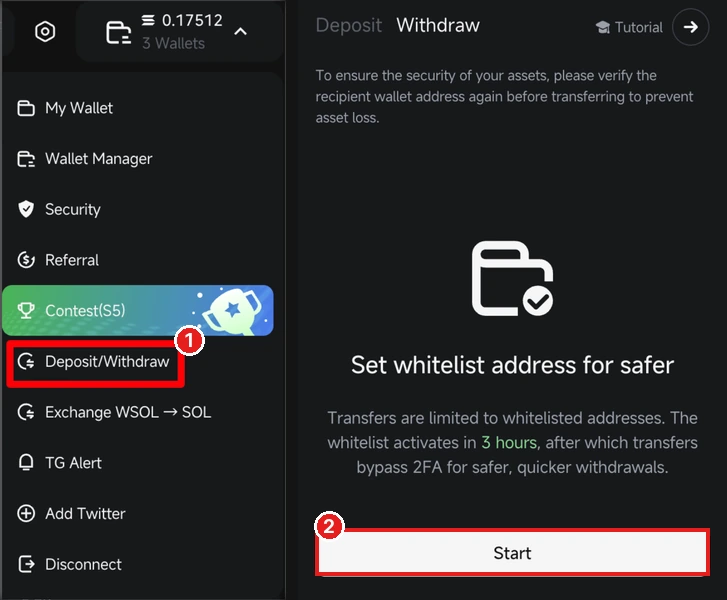
GMGN web: ① Deposit/Withdraw menu, ② Start button on the Set whitelist address screen (appears when the whitelist is empty). (Source: GMGN screenshot, red boxes added) - Paste your Pintu SOL address from Step 1 (Solana network), then enter your Google Authenticator code if asked.
- Wait 3 hours. The whitelist only becomes active 3 hours after you set it. After that, the address shows up under To as Whitelist Wallet. Want to change the address later? Use Update Whitelist on the same page.
Step 3: Withdraw from GMGN
- Make sure the whitelist from Step 2 is active (3 hours have passed).
- Click the wallet menu at the top right → Deposit/Withdraw → Withdraw tab.
- Enter the SOL amount ①. Under To ②, make sure the address is your Pintu address.
- Click Withdrawal ③.
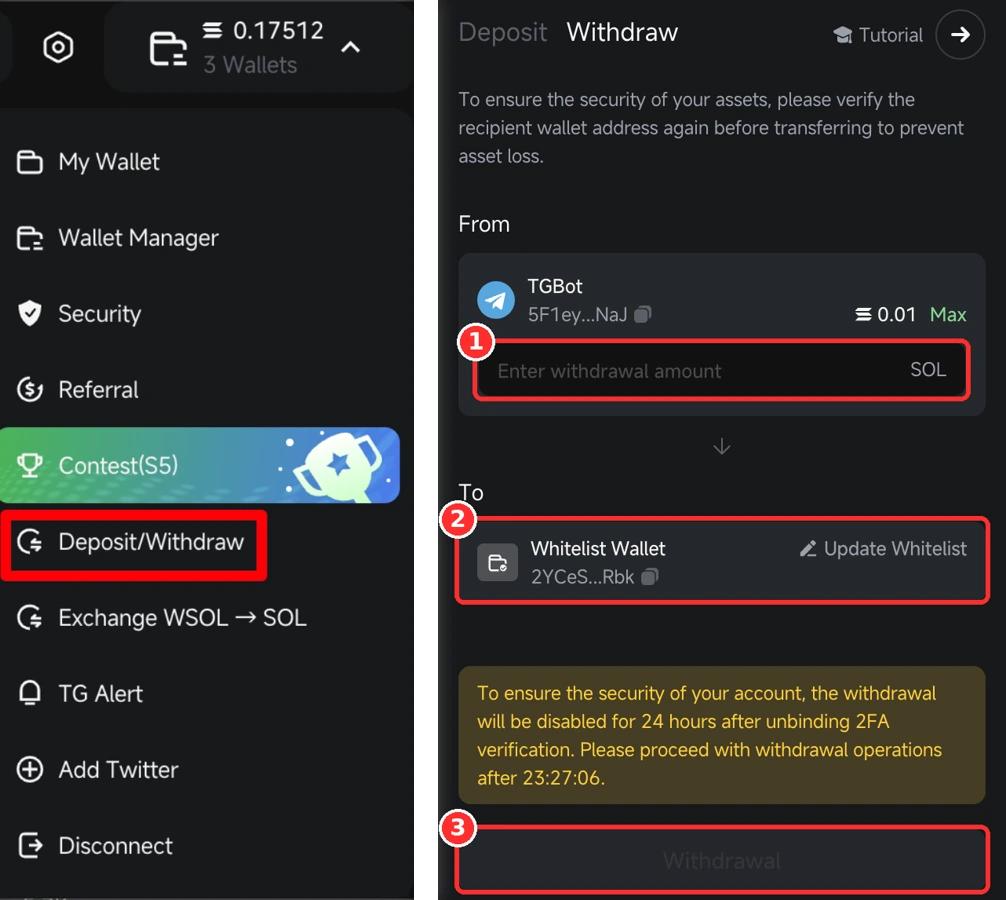
Deposit/Withdraw menu and Withdraw page on GMGN web: ① SOL amount, ② whitelist address (To), ③ Withdrawal button. Numbers are only examples. (Source: GMGN Docs, red boxes added) - Send a small amount first. Once it arrives on Pintu, send the rest.
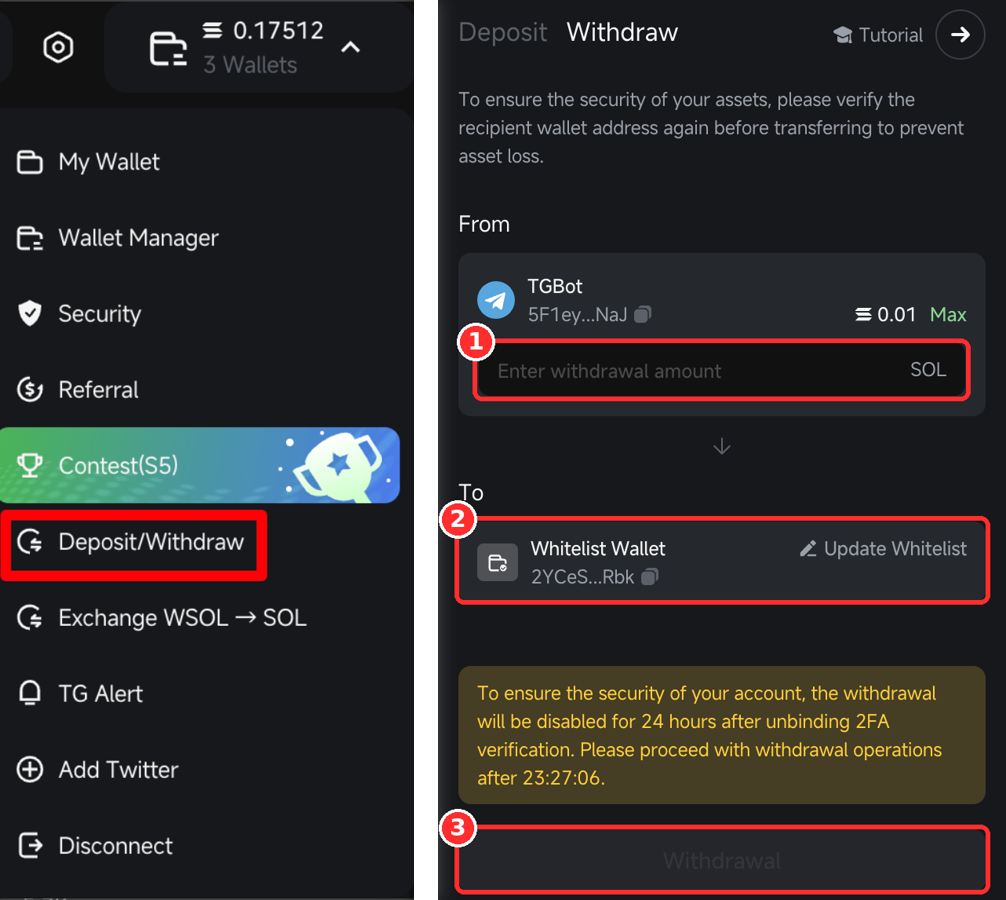
Note: the Max button doesn't send your whole balance, because a little SOL has to stay in the wallet.
The Google Authenticator code is used when you bind 2FA and when you set or change the whitelist. According to GMGN Docs, withdrawals to a whitelisted address don't ask for the code again; if you're asked, enter it. After you re-bind 2FA, withdrawals are locked for 24 hours.
Alternative: Withdraw Through Phantom / Solflare
It's the same wallet (same address), so you don't need a whitelist and you don't have to wait 3 hours.
- Install Phantom only from the official site: phantom.com/download.
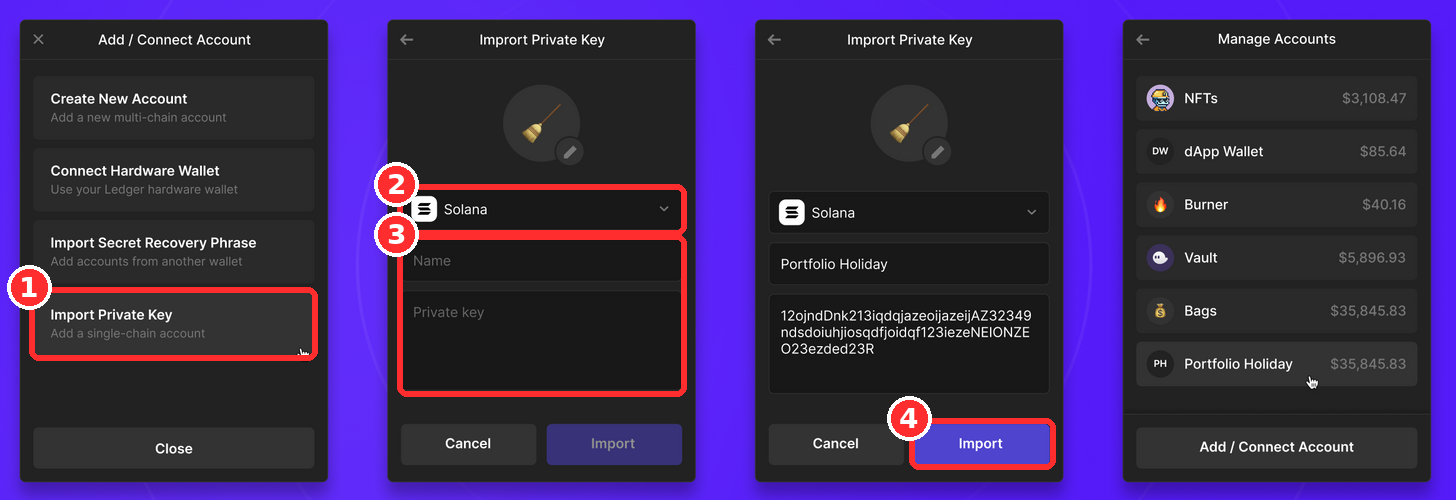
- Open Phantom → I Already Have a Wallet → Import ①. Already have a Phantom wallet? Account menu → Add / Connect Account → Import Private Key.
- Choose the Solana network ②, enter any name, paste the private key you exported in 1.4 Create a GMGN Wallet & Send SOL from Pintu (How to Export Your GMGN Wallet Private Key section) ③, then Import ④. New users will be asked to create a Phantom password.
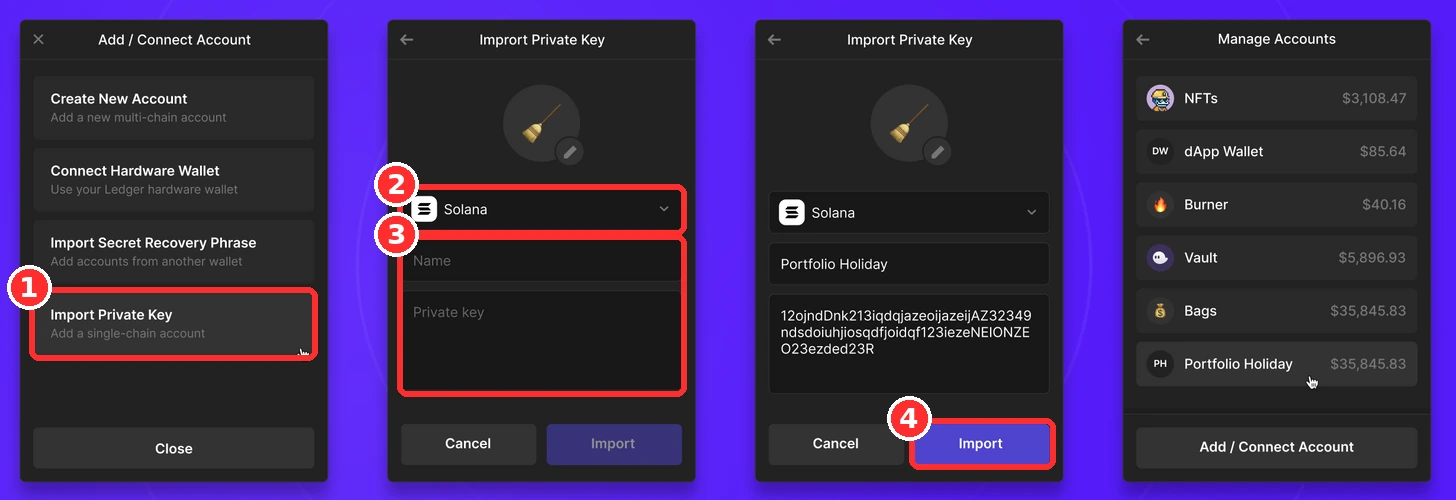
Importing a private key in Phantom: ① Import Private Key, ② choose Solana, ③ name + private key, ④ Import. Source: Phantom (phantom.com/learn), red boxes added. The screen may look slightly different. - Your GMGN wallet's SOL balance shows up in Phantom right away.
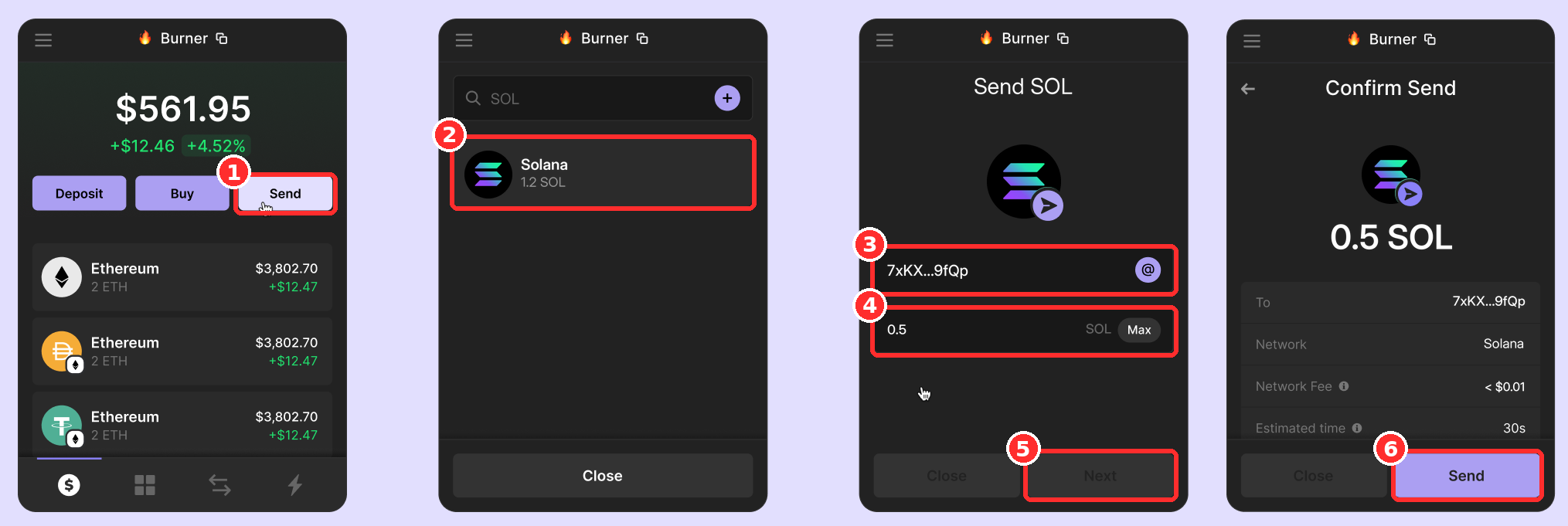
- Send ① → choose SOL ② → paste your Pintu SOL address (Solana network) ③ → enter the amount, small first ④ → Next ⑤ → check the details, then Send ⑥.
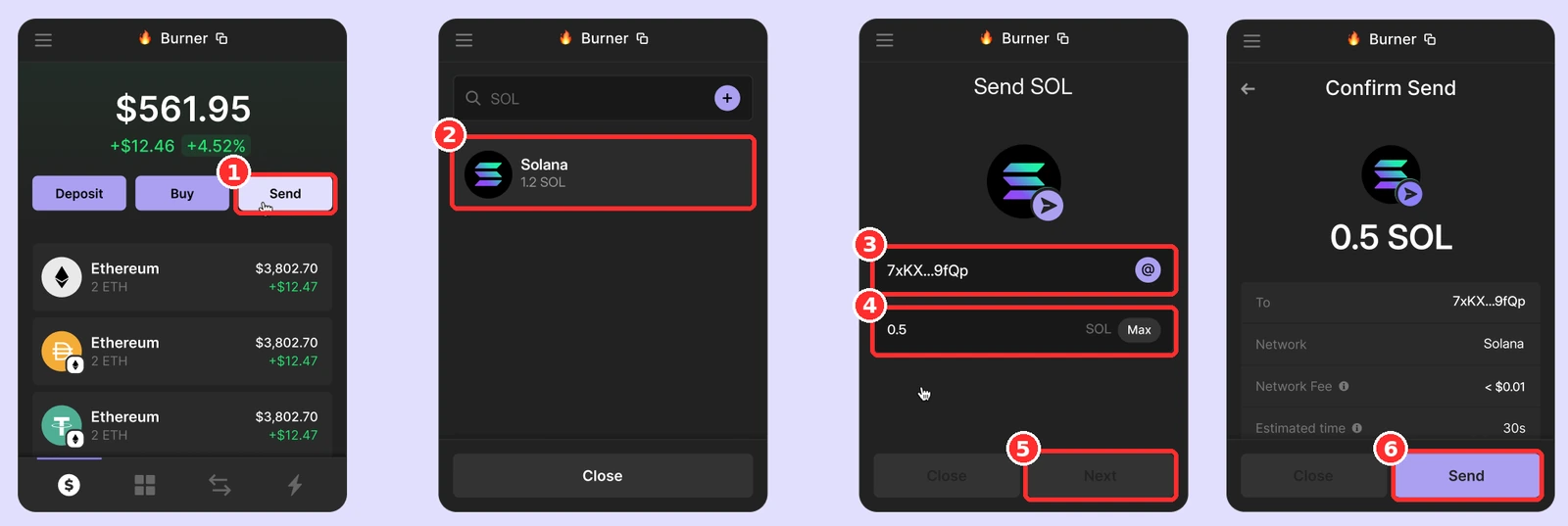
Illustration (edited from the official Phantom guide, phantom.com/learn): choose SOL and paste your Pintu SOL address (Solana network). Numbers are only examples. - Arrived on Pintu? Only then send the rest.
Solflare: the steps are similar. Install it from solflare.com, then account switcher → Add Wallet → Import Existing Wallets → Private Key → paste → Import, then send SOL the same way.
Only paste your private key into the official Phantom/Solflare app. Leave a little SOL in the wallet for network fees.
Step 4: Sell SOL for Rupiah
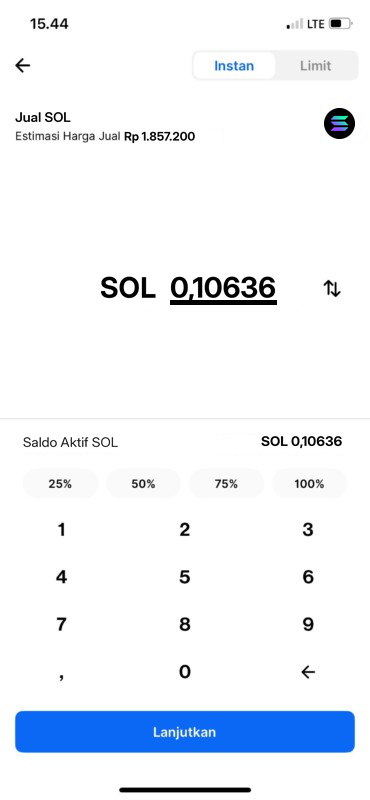
- Open SOL on Pintu and tap Jual (Sell).
- Enter the amount and tap Lanjutkan (Continue).
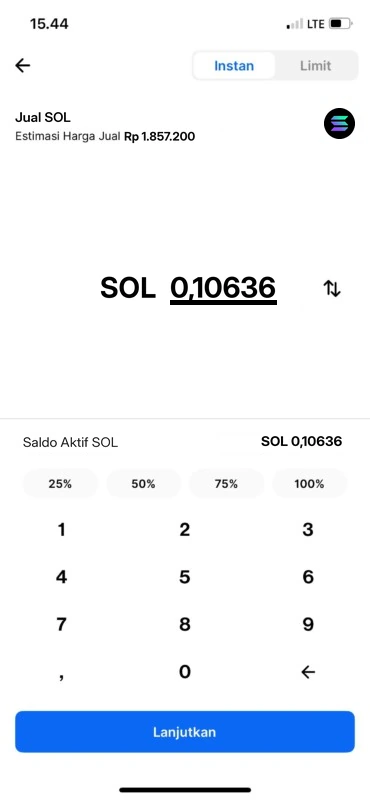
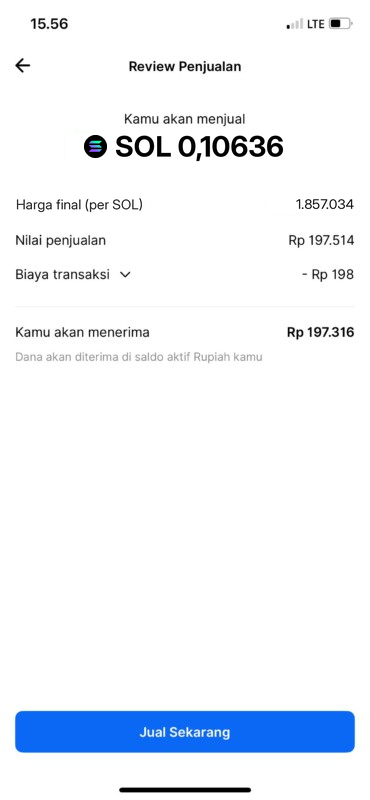
Illustration (edited from an official Pintu screenshot): selling SOL, enter the SOL amount. Numbers and prices are only examples. - Check the Review Penjualan (sale review), then tap Jual Sekarang (Sell Now).
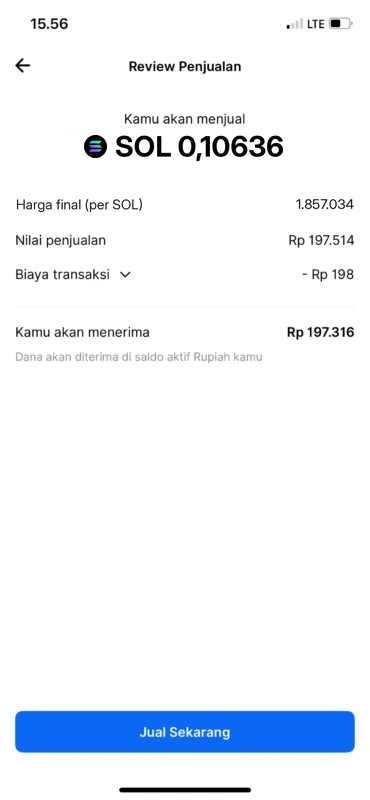
Illustration (edited from an official Pintu screenshot): selling SOL, check the review and tap Jual Sekarang (Sell Now). Numbers and prices are only examples.
Step 5: Withdraw Rupiah to Your Bank Account
- On the home screen, tap Tarik (Withdraw), or Wallet → Wallet Rupiah → Tarik.
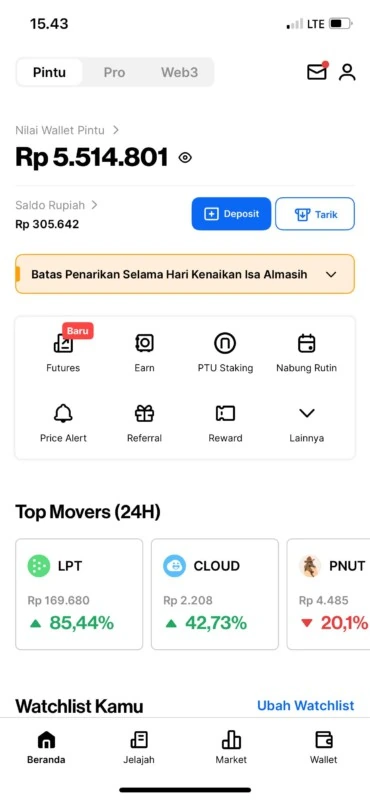
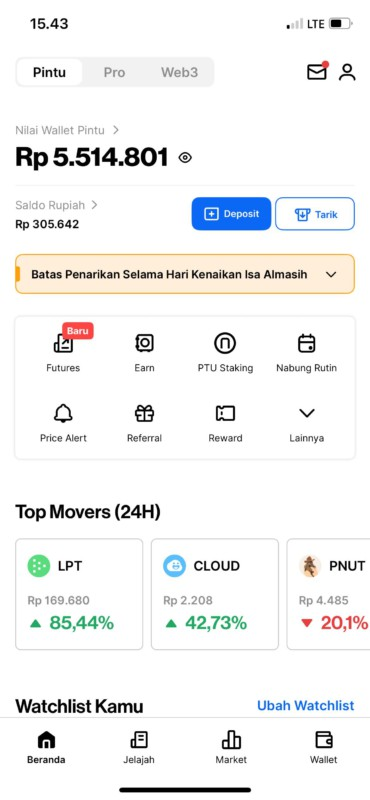
Pintu home screen with the Tarik (Withdraw) button. (Source: Pintu Blog) - Choose the destination bank account. None yet? Tap Tambah Rekening Bank (Add Bank Account) and wait for verification.
- Enter the amount, check the details, then tap Tarik Sekarang (Withdraw Now).
Remember: the fee is Rp4,500 per withdrawal, the minimum is Rp50,000, and the account must be in your own name. According to the Pintu FAQ (checked Oct 18, 2026), withdrawals are usually instant, about 15 minutes, except during bank downtime (usually around 23:00 to 05:00 WIB, Jakarta time). Not received after more than 1 business day? Contact Pintu .
- Bank accountRupiah, in your own name
- PintuDeposit Rupiah, then buy SOLLesson 1.3
- Send SOLSolana network · send a small amount firstLesson 1.4
- GMGN wallet1 login method · turn on 2FALesson 1.4
- TradeGMGN / Frontrun (fee cashback)Lesson 1.5
- WithdrawTo your whitelisted Pintu addressLesson 1.6
- Sell SOL → WithdrawRupiah back to your bank accountLesson 1.6
Summary
- The flow: get your latest SOL address on Pintu → fill in the whitelist on GMGN (active 3 hours after you set it) → withdraw (test small first) → sell SOL → withdraw rupiah to your bank.
- Alternative without a whitelist: import your private key into the official Phantom/Solflare, then send SOL from there.
- Withdrawing to your bank: Rp4,500 fee per withdrawal, Rp50,000 minimum, account in your own name.
Common mistakes
- Sending everything at once without a small test first.
- Using an old Pintu address. It can change, so always get the latest one.
- Rolling all your profit back into trades without ever withdrawing some to your bank.
Profit you've withdrawn is you've locked in. Don't let greed make you roll it all back in.
Next up, lesson 1.7: Must-Know Terms.
Not financial advice.
Progress is saved in this browser.